
Technical walkthrough
Plan the extraction around the evidence you need
Extract video frames online
“Extract frames online” can describe very different jobs. A researcher may need regular observations from a recorded experiment, a support writer may need the exact state before an error appears, and an editor may only need three strong visual references from a long interview. Treating all three jobs as a request for “more frames” creates unnecessary files and makes review slower. A better approach begins with the question the still image must answer.
This browser workflow is designed for selective review of a local file. It does not ingest a remote URL and it is not a substitute for a production transcoding pipeline. The source must be playable by the browser, and the final still will inherit compression artifacts, color decisions, focus, and motion blur from that source. Those constraints are useful: they make it possible to choose a defensible mode and avoid claims the tool cannot support.
Start with codec support and time accuracy
A filename such as video.mp4 describes a container, not the exact video codec. Two MP4 files can behave differently because one contains H.264 while another uses a codec the current browser cannot decode. Play and seek the source before extraction. If duration appears wrong or seeking stalls, create a compatible working copy first; repeatedly pressing extract will not repair the media index.
For evidence or documentation, record the timestamp alongside the image. Browser seeking normally lands near the requested media time, but compressed video is decoded from reference frames and exact presentation can vary around a cut. Compare the requested moment with adjacent candidates when a single frame changes the meaning, and retain the original clip as the authoritative source.
Recommended settings by task
Unknown short clip
Begin with 12 to 20 frames by count. This produces a compact overview without assuming where the useful scene occurs. Note the promising region, then rerun with timestamps around that segment.
Lecture or meeting
Use a wide interval for a visual outline, such as one candidate per major topic rather than one per second. A transcript or chapter note should drive the final timestamp pass.
QA and incident evidence
Use exact timestamps taken from the test log. Export PNG at original resolution when interface text is part of the evidence, and keep a record of the source filename and test environment.
Visual contact sheet
Count mode is easier to budget than a small interval because you know how many candidates will be reviewed. Export only the representative images instead of preserving every sample.
Worked example: documenting a software regression
Suppose a two-minute screen recording shows a form that validates correctly, then fails after a settings change. A count-based pass can establish where the interface changes, but it may miss a warning that flashes briefly. The test note identifies 01:14 as the failure window, so a second pass can request a few timestamps around 01:13 to 01:15. The best evidence set contains the setting before the change, the warning itself, and the final incorrect state.
PNG is appropriate because the text and control edges matter. Original resolution preserves the browser viewport shown in the recording. The exported names can include the test ID and elapsed time, while the bug report links back to the source recording. This is more useful than attaching dozens of unlabeled samples, and it preserves enough context for another person to verify the claim.
A final verification pass before the frame leaves your device
Open each selected still at full size and compare it with playback around the same timestamp. Look for a half-rendered interface, transition blending, unexpected letterboxing, soft focus, or compression that was less obvious in motion. Record the source filename, elapsed time, extraction mode, output format, and requested resolution in the project note. The image file is convenient evidence, but the extractor does not embed a complete audit record inside it.
Local extraction prevents the source video from being uploaded for this task, but the downloaded still is now an ordinary image file. It can contain faces, account names, customer data, private workspaces, or unreleased designs. Apply the same access rules as the original recording. Crop or redact sensitive areas in an image editor, confirm that consent and licensing cover the intended use, and remove temporary exports that are no longer needed.
When another person must reproduce the result, provide the original source, timestamp notes, and the reason a particular frame was chosen. Browser seeking can vary slightly around compressed cuts, so compare adjacent moments instead of assuming one requested decimal time is universally exact. For regulated evidence, scientific frame numbering, or automated batches, move the documented workflow to a deterministic video engine and retain its command and logs.
Four extraction modes, four different questions
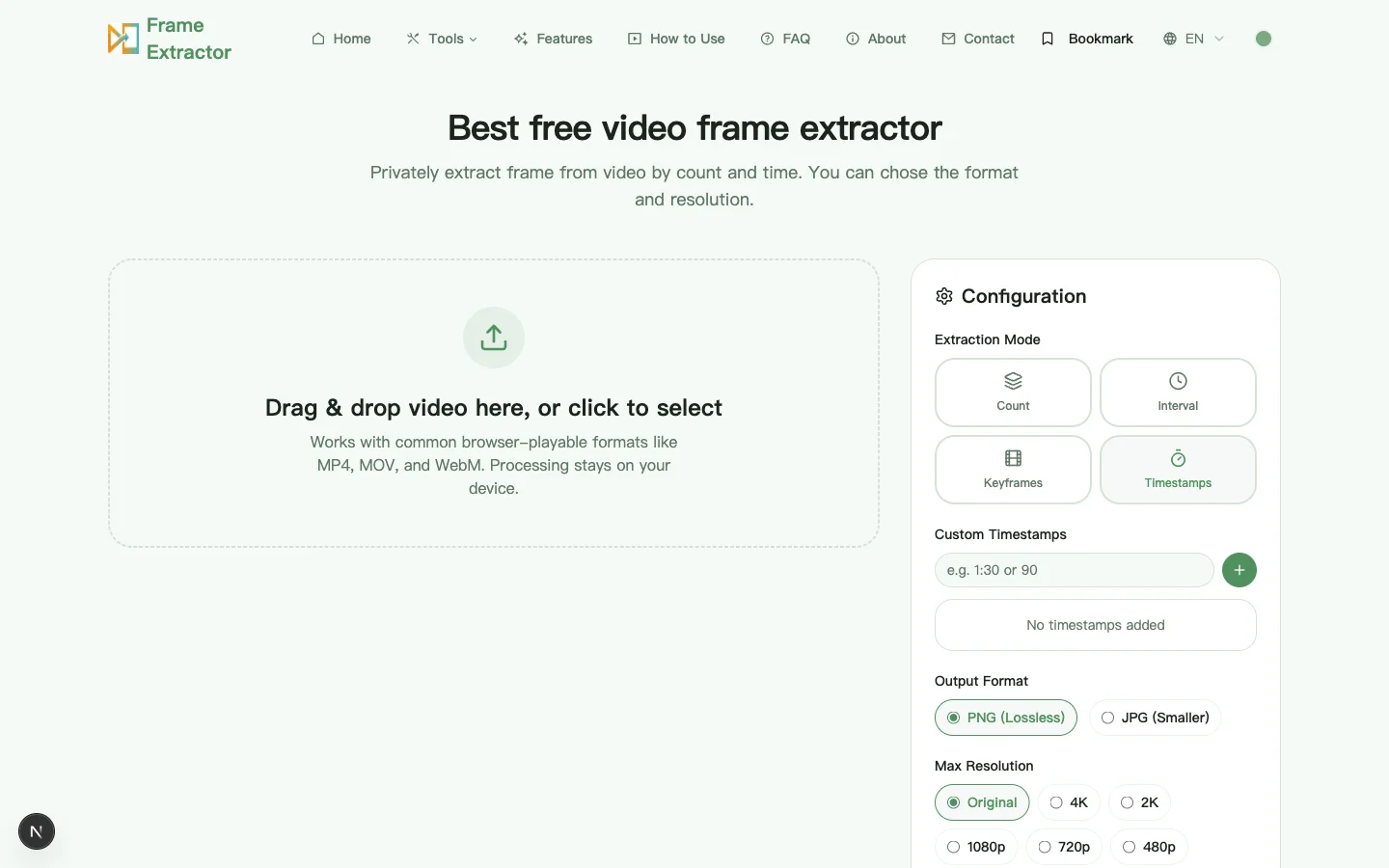
The mode selector is not a quality dial. Count requests N points spaced at k × duration ÷ (N + 1), so it never asks for the opening or closing instant. Interval starts at zero and steps forward, which means it always includes the first frame and silently drops the trailing partial segment. Timestamps requests exactly the list you supply, clamped to the clip and sorted. Choosing between them is a question about what you already know: if you know when the event happened, only timestamps can be right; if you do not, you are distributing coverage and the mode decides where the gaps fall.
Keyframes deserves its own sentence because the name promises more than the implementation delivers. It steps on a fixed two-second grid. It does not read the container’s keyframe index, and a browser video element gives no API that would let it. Treat the mode as a cheap first pass over long footage, and refine with timestamps once you have seen where the content changes.
PNG or JPG: the test that decides it
Ask one question: does the still contain small text, thin rules, or flat interface colour? If yes, export PNG. Lossless encoding preserves the crisp edge of a glyph and the exact value of a UI panel, and those are the two things a lossy codec damages first. A screenshot of a settings dialog at 100 percent is the clearest case — JPEG chroma subsampling smears coloured text against a white background in a way that is obvious at full size and invisible in a thumbnail.
If the still is photographic — a face, a product, a landscape, a presenter — JPG at high quality is the better trade. It is far smaller, it survives being pasted into a chat window, and the artefacts land in fine texture that nobody inspects at 400 percent. What you should not do is export JPG for text and then upscale it later; the ringing is already in the pixels, and no resampling removes it.
One caveat applies to both formats: the export re-encodes the frame, so the file you get is not a byte-for-byte copy of the decoded frame. For a thumbnail that is irrelevant. For anything that has to be reproducible, record the mode, timestamp and output format alongside the image, because the image itself carries none of that.
When the browser is the wrong tool
A browser extractor is the right instrument for reviewing a handful of moments from a local file. It is the wrong instrument for four jobs, and it is cheaper to say so than to let someone discover it halfway through.
Full-frame extraction — every decoded frame, for animation analysis or scientific measurement — belongs in FFmpeg, which can walk a stream frame by frame, report exact frame numbers, and write a command you can re-run and cite. Batch work across hundreds of files belongs in a script for the same reason: doing it by hand in a browser is not reproducible. Codecs the browser cannot decode, including ProRes and most HEVC on hardware without a decoder, need a tool with its own decoder. And anything that must produce an auditable log needs a deterministic engine, because a browser seek is best-effort and does not report which frame it actually presented.
The honest summary is that this page covers the middle of the range well: a file you can play, a moment you can name, an output you will look at. Outside that range, the answer is a command line, not a better setting.
What this page does not do
It does not accept a URL. There is no download, no platform integration, and no watermark removal, because those are different products with different legal footing. It does not upscale: a 720p source exported at 4K produces a larger file containing exactly the same detail, which is a misleading thing to hand to a client. It does not recover a file the browser cannot decode, and it does not make a seek frame-exact.
Stating the boundary is not a disclaimer bolted on at the end. It is the reason the rest of the page can be specific: a tool that claims everything cannot tell you which mode to use.
Detailed questions about browser extraction
Why does a playable video sometimes seek slowly?
Playback can be sequential while random access still depends on the file index, codec structure, and distance between reference frames. Large recordings created for streaming or incomplete files may take longer to seek. A remuxed or transcoded working copy can improve random access without changing the editorial decision about which frames to keep.
Can the exported image prove an exact event by itself?
Usually not. A still removes motion, audio, and what happened immediately before and after. For evidence work, keep the source video, record the elapsed timestamp, and include adjacent states when context changes the interpretation. The still is a convenient reference, not a replacement for the original record.
Should I extract every frame for animation analysis?
This interface is intended for selective still review, not full-frame scientific or production analysis. A proven video engine such as FFmpeg is more appropriate when every decoded frame, exact numbering, frame-rate handling, and a reproducible command are required.